3.1. Convert project
This is the whole procedure for creation of jet project. And it is very simple for creation of project. Enjoy the project.
To use JET within a project you have to convert the project to a JET project. Select New -> Other and then the following entry.
Select the project which should be converted. Press finish.
A new folder "templates" will be created. All templates which will be created / saved, will be automatically converted by the JET engine.
Select your project, right click, select properties, select Jet Settings and maintain the "Source Container" as "src". This is there JET will save the Java class after the template generation.
The JET project provides an editor for JET templates. Unfortunately this editor does currently not work.
The first lines of a JET file must consists of the JET directive. The package parameter defines the Java package in which the Java class is generated. The class parameter defines the name of the generated class and imports defines the necessary imports for the created class. The folder in which the code in generated is defined via the "Source Container".
The template you have to create must have the "jet" suffix. For example to create a file web.html the template must be called web.htmljet.
Select the project which should be converted. A new folder "templates" will be created. All templates which will be created / saved here, will be automatically converted by the JET engine.
Select your project, right click, select properties, select Jet Settings and maintain the "Source Container". This is there JET will save the Java class after the template generation.
Create the following file "Simple2HTML.htmljet" in the template folder and save.
You See This HTML Code plese Click On image and see this code.
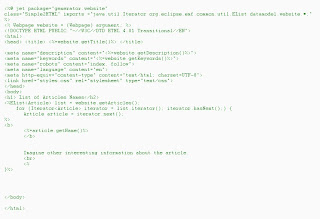
After saving the class Simple2HTML will be created in your source folder in package generator.website. This is because the JET directive has defined this.
<%@ jet package="generator.website" class="Simple2HTML" imports ="java.util.Iterator org.eclipse.emf.common.util.EList datamodel.website.*;" %>
Have a look at the generated class. You can now use the generated class to create HTML output. For example use the following coding to create HTML pages which lists the articles of each Webpage.
package writeWebpage;

import generator.website.Simple2HTML;

import java.io.BufferedWriter;
import java.io.FileWriter;
import java.io.IOException;
import java.util.Iterator;

import datamodel.website.MyWeb;
import datamodel.website.Webpage;

public class SimpleWebTest {
 private static String TARGETDIR = "./output/";

 public static void main(String[] args) {
  EMFModelLoad loader = new EMFModelLoad();
  MyWeb myWeb = loader.load();
  createPages(myWeb);
 }

 private static void createPages(MyWeb myWeb) {
  Simple2HTML htmlpage = new Simple2HTML();
  FileWriter output;
  BufferedWriter writer;
  for (Iterator iterator = myWeb.getPages().iterator(); iterator
    .hasNext();) {
   Webpage page = iterator.next();
   System.out.println("Creating " + page.getName());

   try {
    output = new FileWriter(TARGETDIR + page.getName() + ".html");
    writer = new BufferedWriter(output);
    writer.write(htmlpage.generate(page));
    writer.close();
   } catch (IOException e) {
    e.printStackTrace();
   }
  }
 }
}
As with JSPs common elements can be included into the JET templates via the include declaration. For example if your webpages all use the same header, you could declare the header in a separate file and include it <%@ include file = "header.html" %>


